.png&customEmojiId=35f270ba-ff57-80fe-8e22-007a667c4f37&width=250)
[LANG-KO]
HWP 생성 도구란?
아래한글(HWP) 문서를 만들어주는 도구에요.
요청 내용과 이전 대화 맥락을 바탕으로 HWP 문서를 자동으로 작성하고, 새 탭에서 열리는 편집 화면에서 AI 기능을 활용해 내용을 자유롭게 다듬을 수 있어요. 완성된 문서는 HWP·HWPX는 물론 PDF 형식으로도 저장할 수 있고, HWP 구버전부터 최신 버전까지 모두 호환돼요.
정부·공공기관 제출 문서, 학교 보고서, 한글 양식 기반 사업계획서·기안서 등 아래한글이 표준인 업무에 활용해 보세요.
 HWP 파일을 채팅창에서 즉시 다운로드하는 방식이 아니에요. 새 탭에서 편집 화면이 열리며, 링크는 일정 시간 동안만 유효해요. 슬라이드 개요나 단순 텍스트 요약 작성에는 사용할 수 없어요.
어떤 상황에서 사용할 수 있나요?
HWP 생성 도구는 다음과 같은 상황에서 특히 유용합니다.
•
정부·공공기관에 제출할 양식 문서가 필요할 때
•
학교 과제나 보고서를 한글 문서로 작성하고 싶을 때
•
사업계획서, 기안서 등 한글 양식이 표준인 업무 문서가 필요할 때
•
기존 대화 맥락이나 자료를 바탕으로 한글 문서 초안을 빠르게 만들고 싶을 때
예를 들어, 사용자는 "@vhwp 사업계획서 초안 만들어줘", "@vhwp 위 회의 내용 회의록 형식으로 정리해줘", "@vhwp 신청서 양식으로 만들어줘"처럼 자연스럽게 요청할 수 있습니다. 그러면 AI가 이 도구를 사용해 HWP 문서 생성 세션을 만들고, 외부 편집 화면으로 연결되는 링크를 제공해줍니다.
어떻게 사용하나요?
이 도구는 반드시 입력창에서 @vhwp 트리거 키워드를 먼저 입력한 뒤, 만들고 싶은 문서의 내용을 함께 적어주셔야 동작합니다.
즉, 형식은 다음과 같습니다.
@vhwp + [생성·작성할 HWP 문서 내용]
상황별 사용 예시는 다음과 같습니다.
•
사업계획서: "@vhwp 사업계획서 초안 만들어줘"
•
회의록: "@vhwp 위 회의 내용 회의록 형식으로 정리해줘"
•
신청서·기안서: "@vhwp 신청서 양식으로 만들어줘"
•
학교 보고서: "@vhwp 환경 보호 주제로 5장짜리 학교 보고서 만들어줘"
@vhwp 키워드를 반드시 입력해야 도구가 호출돼요. 문서 작성이 시작되면 채팅창에는 편집 링크가 제공되며, 그 링크를 클릭하면 새 탭에서 편집 화면이 열려요. 편집 화면에서는 AI 기능을 추가로 활용해 내용을 자유롭게 다듬을 수 있어요. 전체를 한 번에 다시 작성하거나, 특정 영역만 골라서 재작성하는 등 세밀한 조정이 가능해요. 편집 링크는 일정 시간 동안만 유효해요. 작성한 문서는 HWP, HWPX, 또는 PDF 형식으로 저장해 주세요.편집 화면 미리보기
새 탭에서 열리는 편집 화면은 HWP 표준 편집 환경과 AI 어시스턴트가 한 화면에 함께 제공돼요. 좌측에서 본문을 편집하면서 우측 사이드패널의 AI 기능으로 내용을 생성·다듬을 수 있어요.
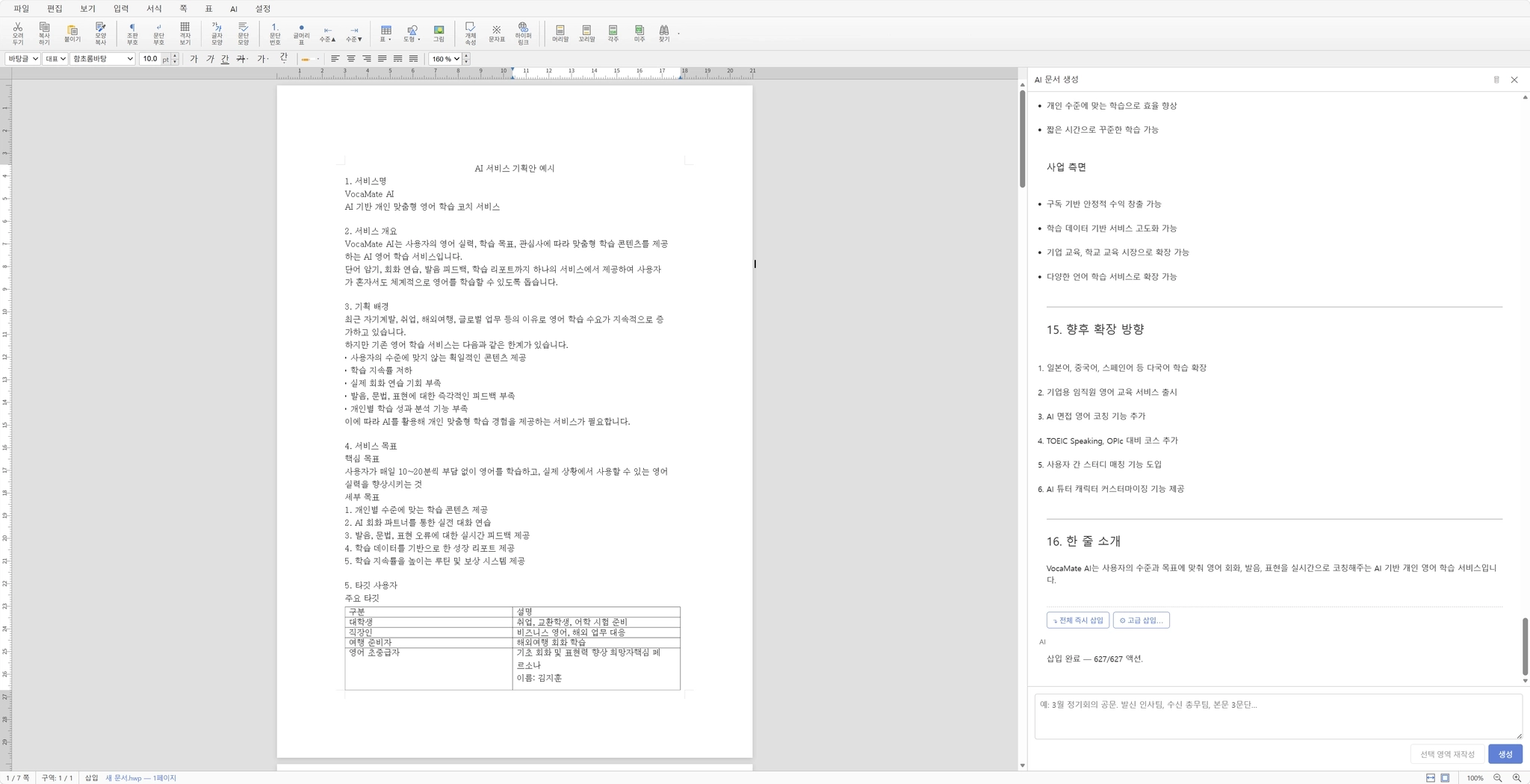
다음 네 가지 기능을 자유롭게 활용할 수 있어요.
HWP 표준 편집
파일·편집·보기·입력·서식·쪽·표·AI·설정 메뉴와 함께 글자모양·문단모양·표·도형·그림·머리말·꼬리말·각주 등 아래한글에서 익숙한 도구들을 그대로 사용할 수 있어요. 정부·공공기관에서 요구하는 한글 양식 그대로 작업하실 수 있어요.
AI 자동 문서 생성
우측 사이드패널의 AI 문서 생성 영역에서 자연어 프롬프트를 입력하면, 한 줄 소개·사업 측면·향후 확장 방향 등 문서 섹션별 콘텐츠가 구조화된 형태로 생성돼요. 전체 즉시 삽입으로 한 번에 본문에 반영하거나, 고급 삽입으로 세부 옵션을 조정할 수 있어요.
선택 영역 재작성
본문에서 다듬고 싶은 부분만 선택한 뒤 선택 영역 재작성 버튼을 누르면, 해당 영역만 AI가 다시 작성해줘요. 전체 문서는 그대로 두고 일부만 표현을 정리하거나 톤을 바꾸고 싶을 때 유용해요.
HWP / HWPX / PDF 저장
완성된 문서는 표준 아래한글 형식인 HWP, 최신 HWPX 형식은 물론, 공유·인쇄용으로 PDF 형식으로도 저장할 수 있어요. HWP는 구버전부터 최신 버전까지 모두 지원하니, 오래된 양식 파일과 최신 버전 모두 호환돼요. 저장한 파일은 아래한글, 한글 뷰어, 또는 PDF 뷰어에서 그대로 열어 사용하실 수 있어요.
[LANG-EN]
What is the HWP Generation tool?
A tool that creates Hangul (HWP) documents.
Based on your request and the previous conversation context, it automatically writes an HWP document, and you can freely refine the content using AI features in the editing screen that opens in a new tab. The completed document can be saved as HWP, HWPX, or PDF, and is fully compatible from older to the latest HWP versions.
Use it for tasks where Hangul is the standard — government and public institution submission documents, school reports, business plans and proposals based on Korean templates.
HWP files are not downloaded directly in the chat window. An editing screen opens in a new tab, and the link is only valid for a limited time. It cannot be used for slide outlines or simple text summaries.When can you use it?
The HWP Generation tool is especially useful in these situations.
•
When you need a template document to submit to government or public institutions
•
When you want to write school assignments or reports in Hangul format
•
When you need standard Korean business documents like business plans or proposals
•
When you want to quickly create a Hangul document draft based on conversation context or materials
For example, you can naturally ask "@vhwp Make a business plan draft", "@vhwp Organize the meeting above as meeting minutes", or "@vhwp Make an application form". The AI will then use this tool to create an HWP document session and provide a link to the external editing screen.
How to use it?
This tool only works when you enter the @vhwp trigger keyword first, followed by the content of the document you want to create.
The format is as follows:
@vhwp + [Content of HWP document to create]
Here are some scenarios:
•
Business plan: "@vhwp Make a business plan draft"
•
Meeting minutes: "@vhwp Organize the meeting above as meeting minutes"
•
Application/Proposal: "@vhwp Make an application form"
•
School report: "@vhwp Make a 5-page school report on environmental protection"
You must enter the @vhwp keyword for the tool to be called. Once document creation starts, an editing link is provided in the chat. Click the link to open the editing screen in a new tab. In the editing screen, you can further use AI features to freely refine the content. You can rewrite the entire document at once, or selectively rewrite specific areas for fine-tuned adjustments. The editing link is only valid for a limited time. Save the created document in HWP, HWPX, or PDF format.Editing screen preview
The editing screen that opens in a new tab provides the standard HWP editing environment and an AI assistant together on a single screen. You can edit the body on the left while using AI features in the right sidebar to generate and refine content.
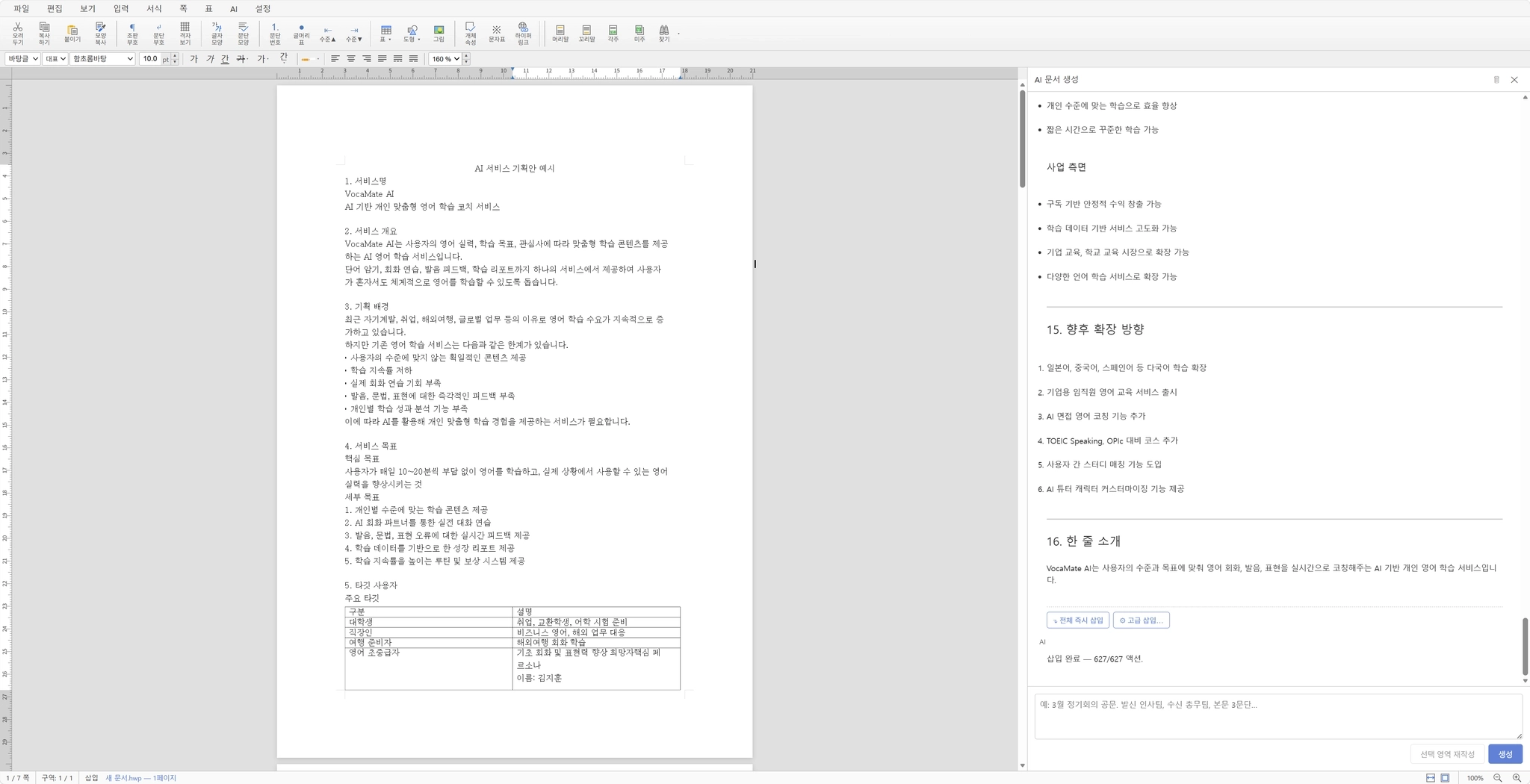
You can freely use the following four features.
Standard HWP editing
You can use the familiar Hangul tools as-is — File, Edit, View, Insert, Format, Page, Table, AI, Settings menus, along with character/paragraph styles, tables, shapes, images, headers, footers, footnotes, and more. You can work directly with the Hangul templates required by government and public institutions.
AI-powered document generation
When you enter a natural language prompt in the AI Document Generation area in the right sidebar, structured content is generated per document section — one-line introduction, business perspective, future expansion direction, and more. You can reflect it all at once in the body with Insert All, or fine-tune details with Advanced Insert.
Selection rewriting
Select the part of the body you want to refine, then press the Rewrite Selection button to have the AI rewrite just that area. Useful for cleaning up wording or changing tone in part of the document while leaving the rest intact.
HWP / HWPX / PDF save
The completed document can be saved as HWP (standard Hangul format), the newer HWPX format, and PDF for sharing or printing. HWP supports all versions from old to latest, so it's compatible with both legacy template files and the latest version. Saved files can be opened and used directly in Hangul Word Processor, Hangul Viewer, or any PDF viewer.
[LANG-JA]
HWP生成ツールとは?
ハングルワード(HWP)文書を作ってくれるツールです。
リクエスト内容と過去の会話の文脈をもとにHWP文書を自動的に作成し、新しいタブで開く編集画面でAI機能を活用して内容を自由に整えることができます。 完成した文書はHWP・HWPXはもちろんPDF形式でも保存でき、HWPの旧バージョンから最新バージョンまですべて互換です。
政府・公共機関に提出する文書、学校レポート、ハングル様式に基づく事業計画書・稟議書など、ハングルワードが標準となっている業務でご活用ください。
HWPファイルをチャット欄から即座にダウンロードする方式ではありません。新しいタブで編集画面が開き、リンクは一定時間のみ有効です。 スライドの概要や単純なテキスト要約の作成には使用できません。どんなときに使えますか?
HWP生成ツールは、こんなときに特に役立ちます。
•
政府・公共機関に提出する様式文書が必要なとき
•
学校の課題やレポートをハングル文書で作成したいとき
•
事業計画書・稟議書など、ハングル様式が標準の業務文書が必要なとき
•
過去の会話の文脈や資料をもとにハングル文書のドラフトを素早く作りたいとき
たとえば、「@vhwp 事業計画書のドラフトを作って」「@vhwp 上の会議内容を議事録形式にまとめて」「@vhwp 申請書様式で作って」といった自然な形でリクエストできます。すると、AIがこのツールを使ってHWP文書作成セッションを生成し、外部の編集画面につながるリンクを提供します。
使い方
このツールは必ず入力欄で@vhwpトリガーキーワードを先に入力した後、作成したい文書の内容を一緒に書いてこそ動作します。
形式は次のとおりです。
@vhwp + [生成・作成するHWP文書の内容]
シチュエーション別の使用例は次のとおりです。
•
事業計画書: 「@vhwp 事業計画書のドラフトを作って」
•
議事録: 「@vhwp 上の会議内容を議事録形式にまとめて」
•
申請書・稟議書: 「@vhwp 申請書様式で作って」
•
学校レポート: 「@vhwp 環境保護をテーマに5ページの学校レポートを作って」
@vhwpキーワードを必ず入力しないとツールが呼び出されません。文書作成が開始されると、チャット欄に編集リンクが提供され、そのリンクをクリックすると新しいタブで編集画面が開きます。 編集画面ではAI機能をさらに活用して内容を自由に整えられます。全体を一度に書き直したり、特定の領域だけを選んで書き直したりと、細やかな調整が可能です。 編集リンクは一定時間のみ有効です。作成した文書はHWP、HWPX、またはPDF形式で保存してください。編集画面プレビュー
新しいタブで開く編集画面は、HWP標準編集環境とAIアシスタントが1画面に一緒に提供されます。左側で本文を編集しながら、右側のサイドパネルのAI機能で内容を生成・整えることができます。
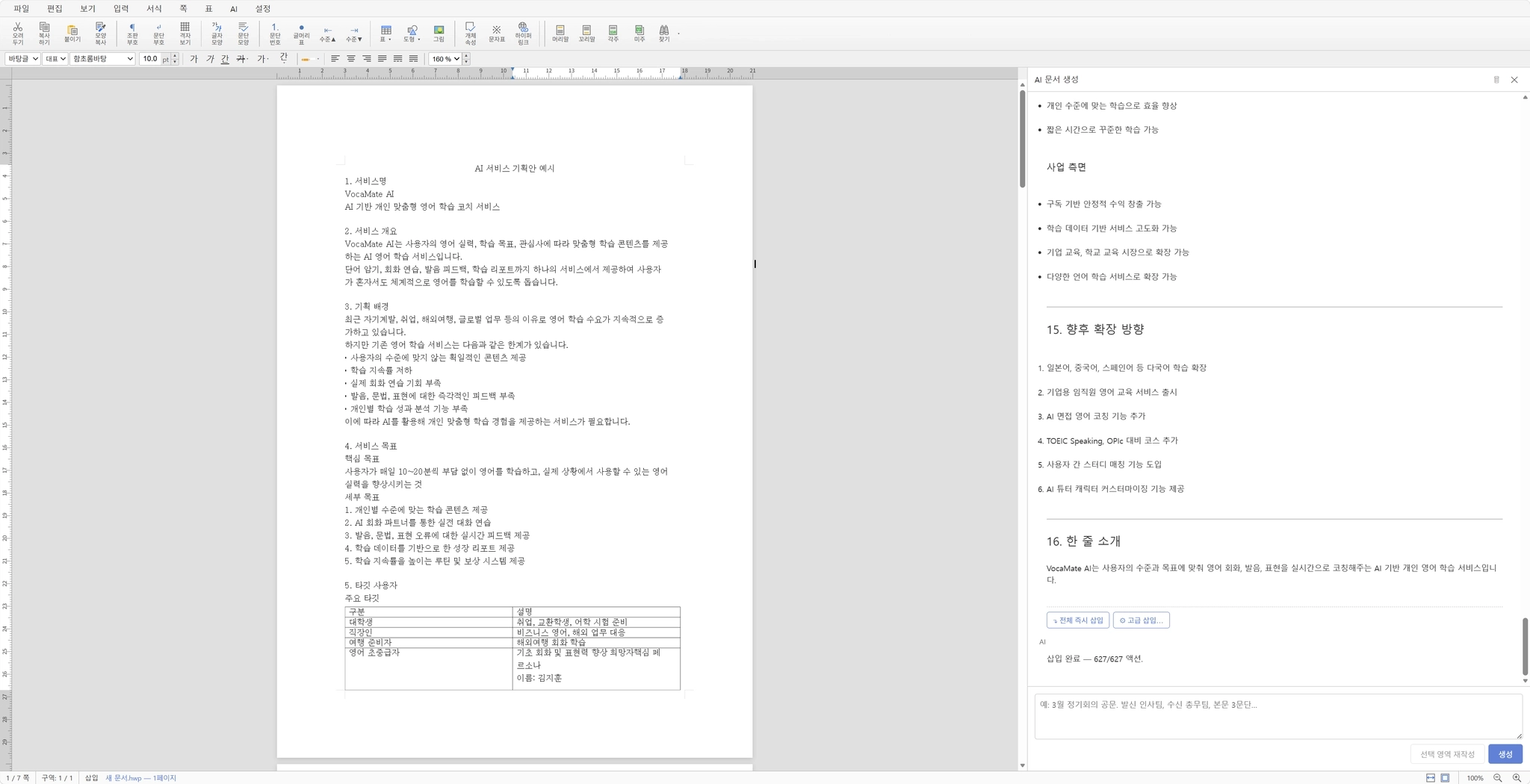
次の4つの機能を自由に活用できます。
HWP標準編集
ファイル・編集・表示・入力・書式・ページ・表・AI・設定メニューとともに、文字スタイル・段落スタイル・表・図形・画像・ヘッダー・フッター・脚注など、ハングルワードでおなじみのツールをそのまま使えます。政府・公共機関が要求するハングル様式のまま作業できます。
AI自動文書生成
右側サイドパネルのAI文書生成エリアに自然言語プロンプトを入力すると、一言紹介・事業観点・今後の拡張方向など、文書のセクション別コンテンツが構造化された形で生成されます。一括挿入で一度に本文に反映するか、詳細挿入で細かいオプションを調整できます。
選択領域の書き直し
本文で整えたい部分を選択した後、選択領域の書き直しボタンを押すと、その領域だけをAIが書き直してくれます。全体はそのままにして一部だけ表現を整えたり、トーンを変えたいときに便利です。
HWP / HWPX / PDF保存
完成した文書は標準ハングルワード形式のHWP、最新のHWPX形式はもちろん、共有・印刷用にPDF形式でも保存できます。HWPは旧バージョンから最新バージョンまですべてサポートするので、古い様式ファイルと最新バージョンの両方に互換です。保存したファイルはハングルワードプロセッサ、ハングルビューア、またはPDFビューアでそのまま開いて使えます。